 Home
Tutorial
About
Home
Tutorial
About
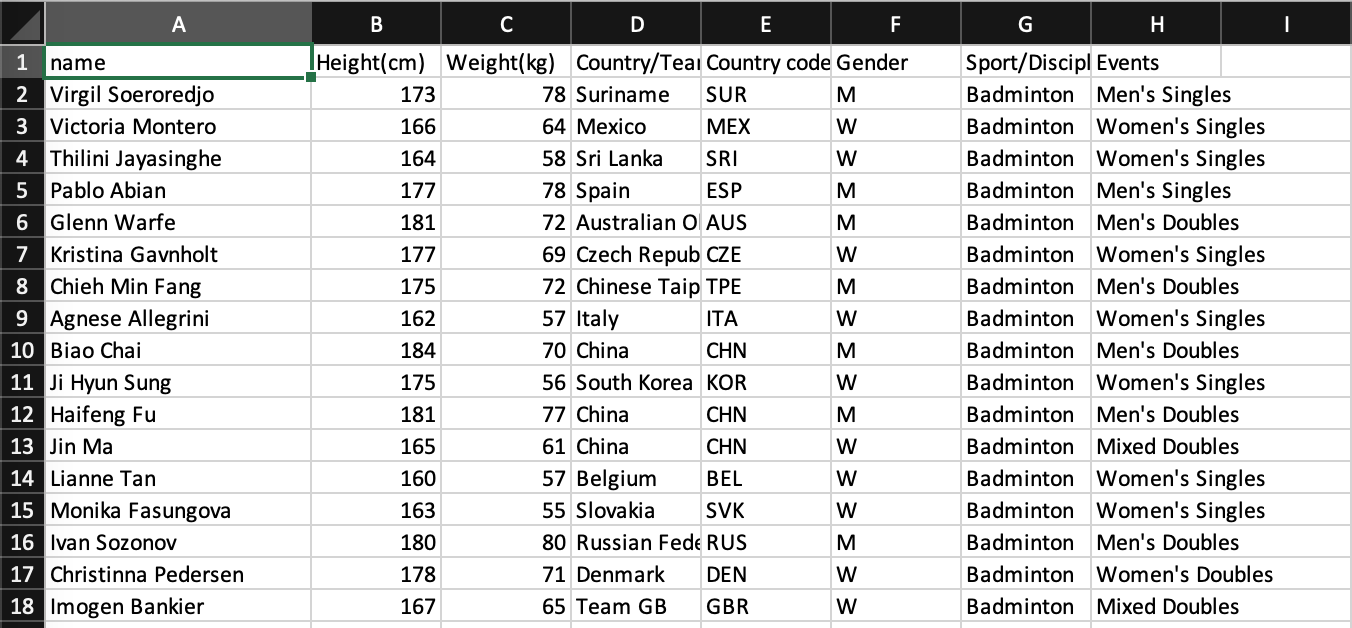
First, we have a table in CSV format.
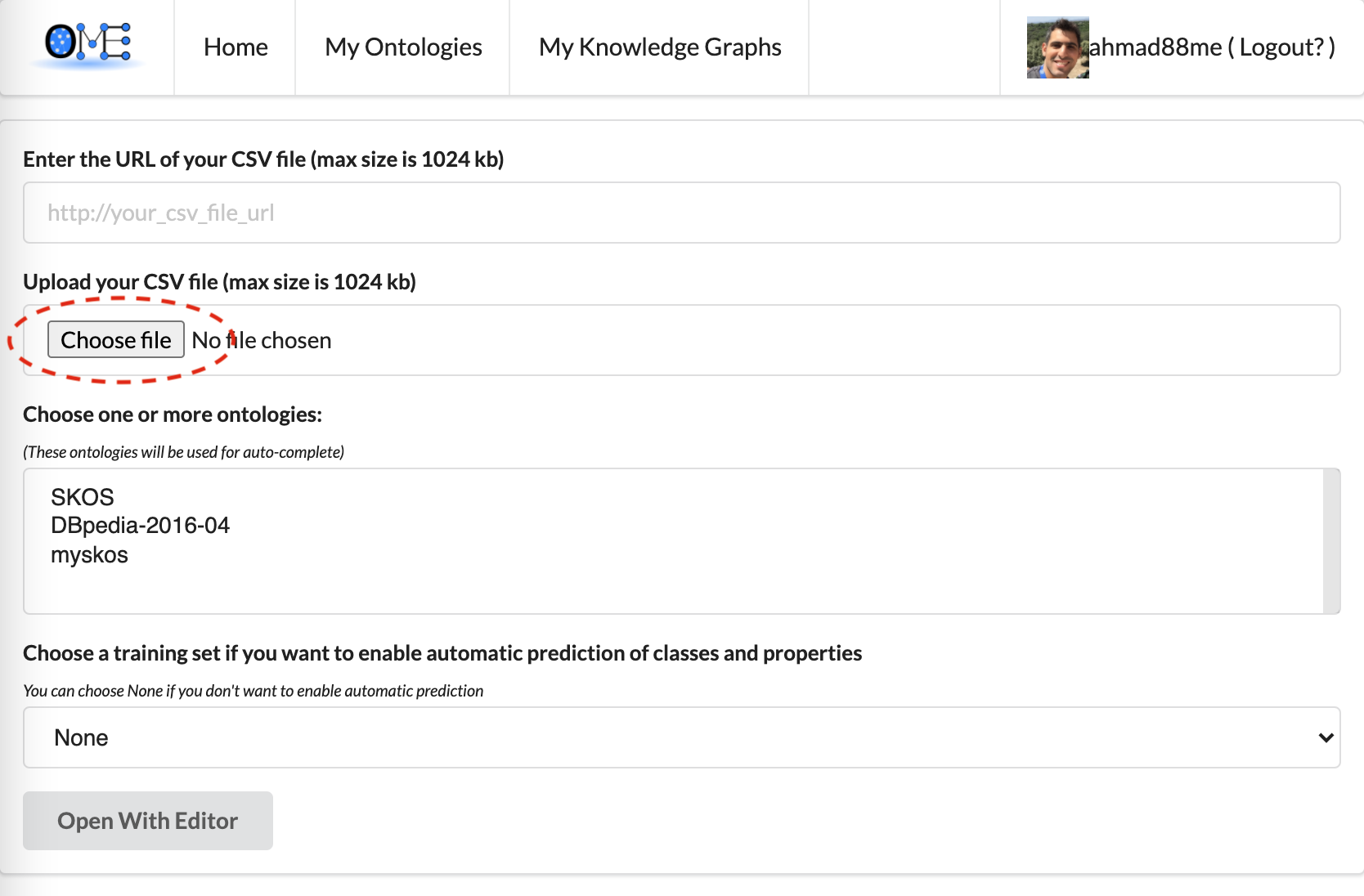
We go to Morph-OME website
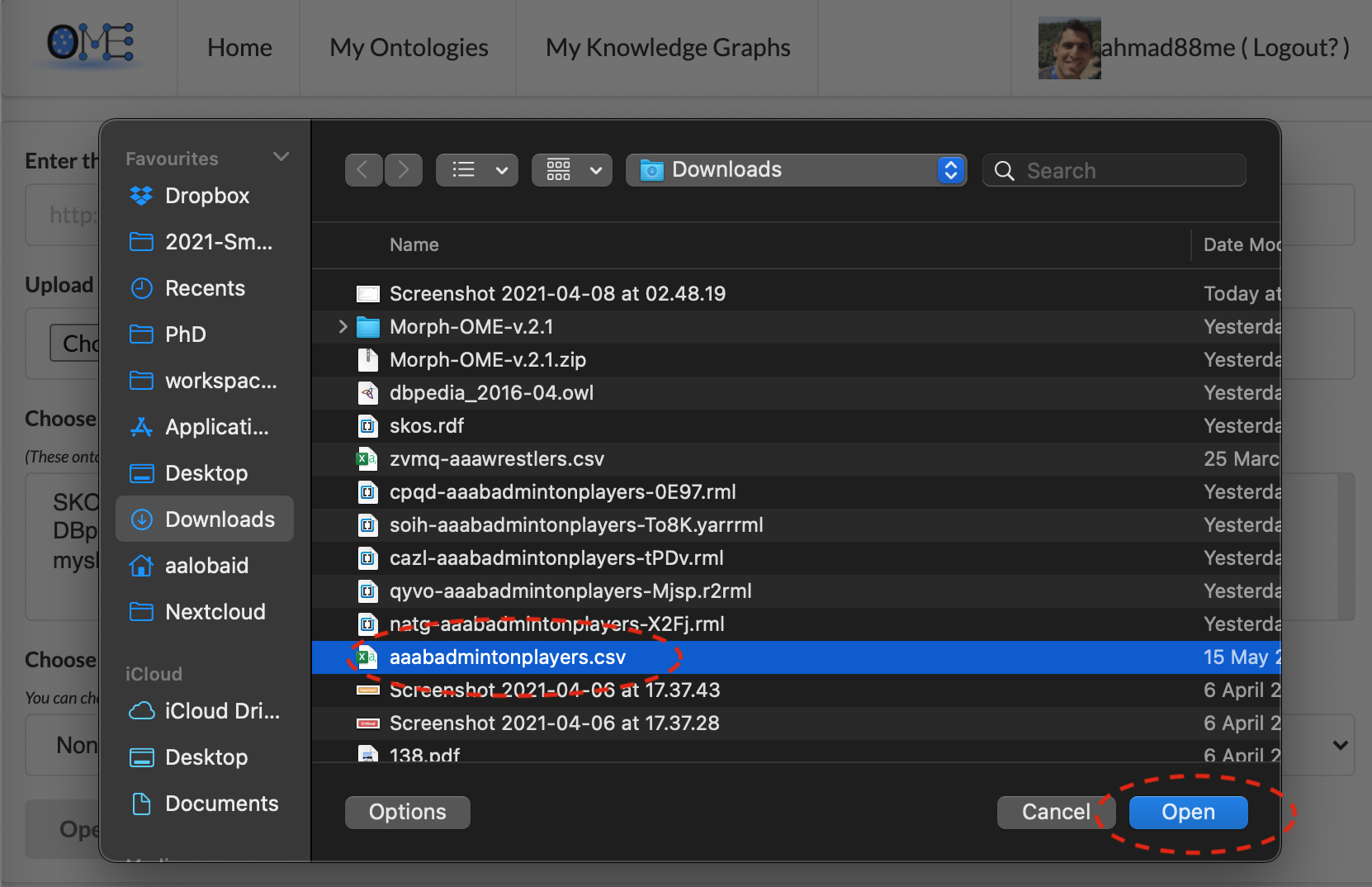
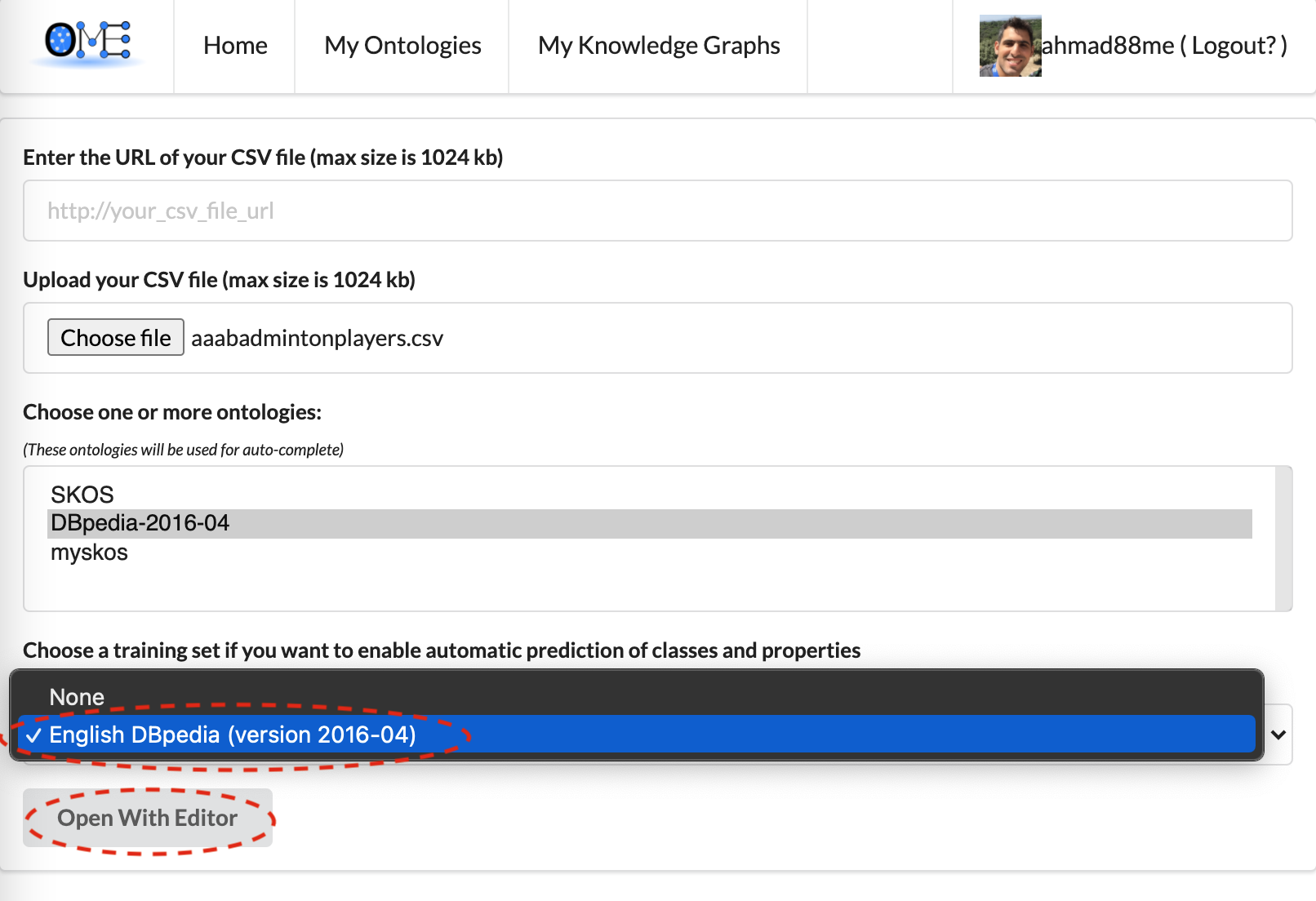
and upload the file. We can either upload a local file or enter the url of a remote one.
We can select one or more ontologies to be used for the auto-completion function in the next page
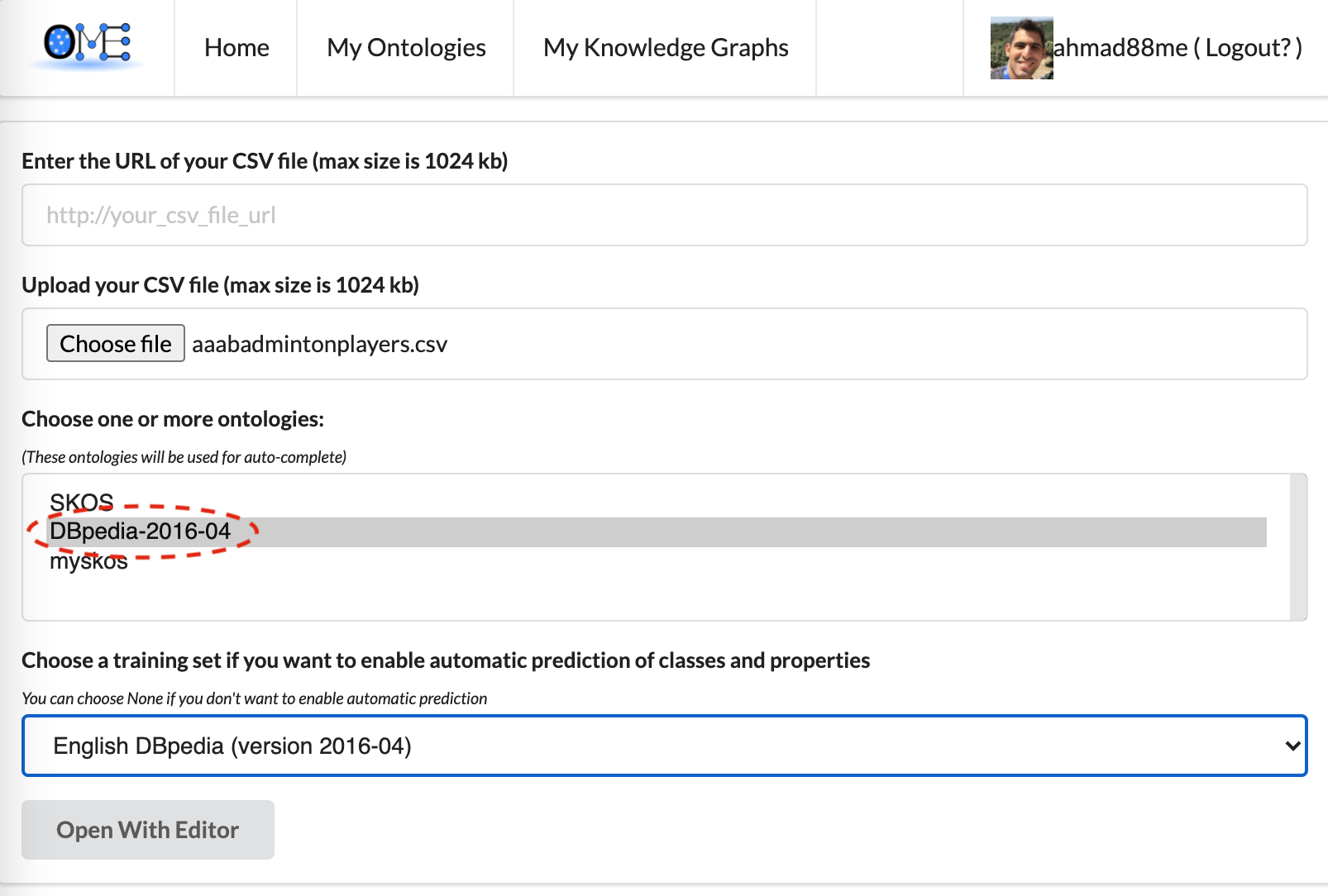
We select the knowledge graph to help us in selecting the classes and properties in the next page.
We can select None if we don't want to use the smart suggestion feature. Then we click on
Open With Editor to annotate the columns.
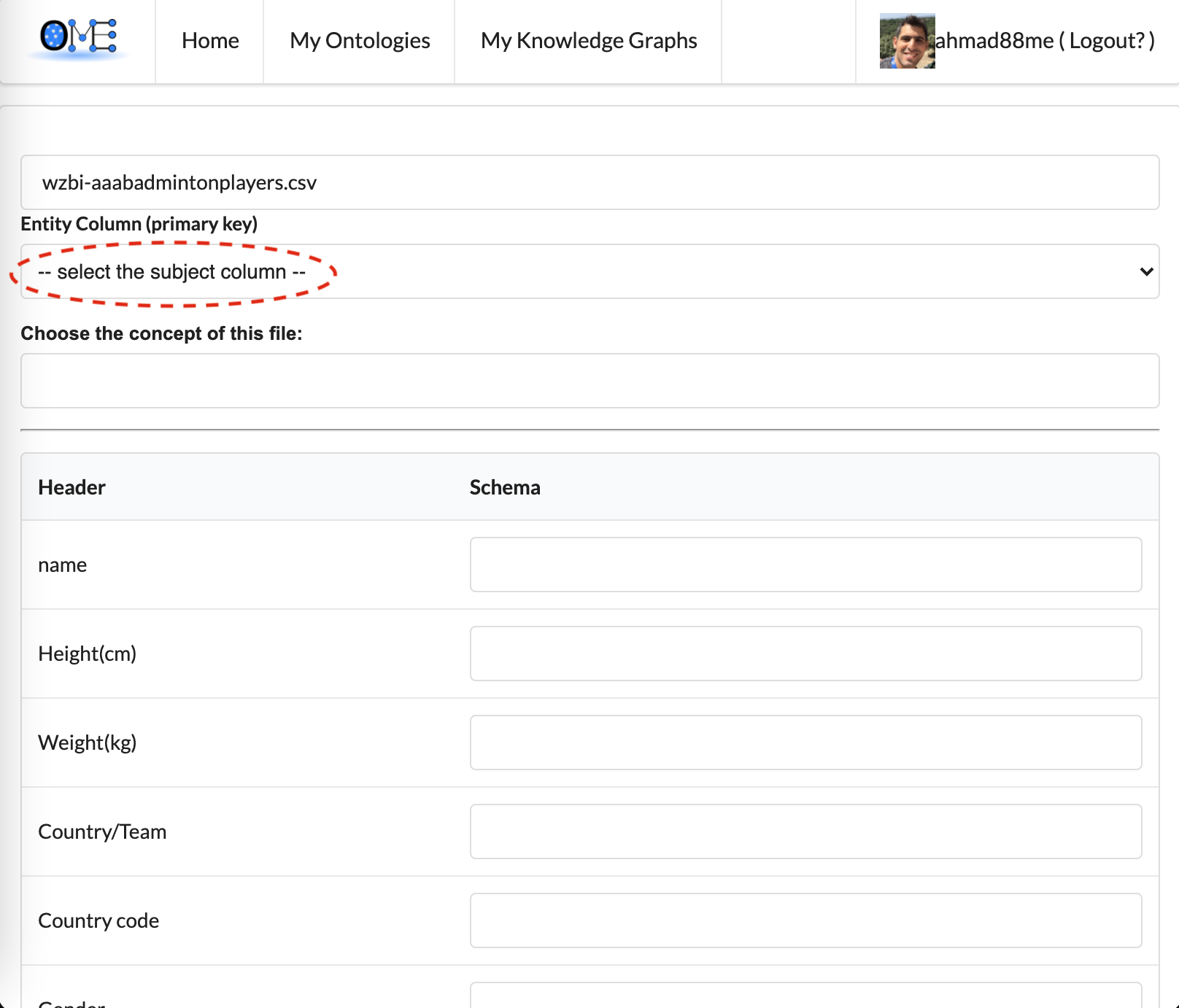
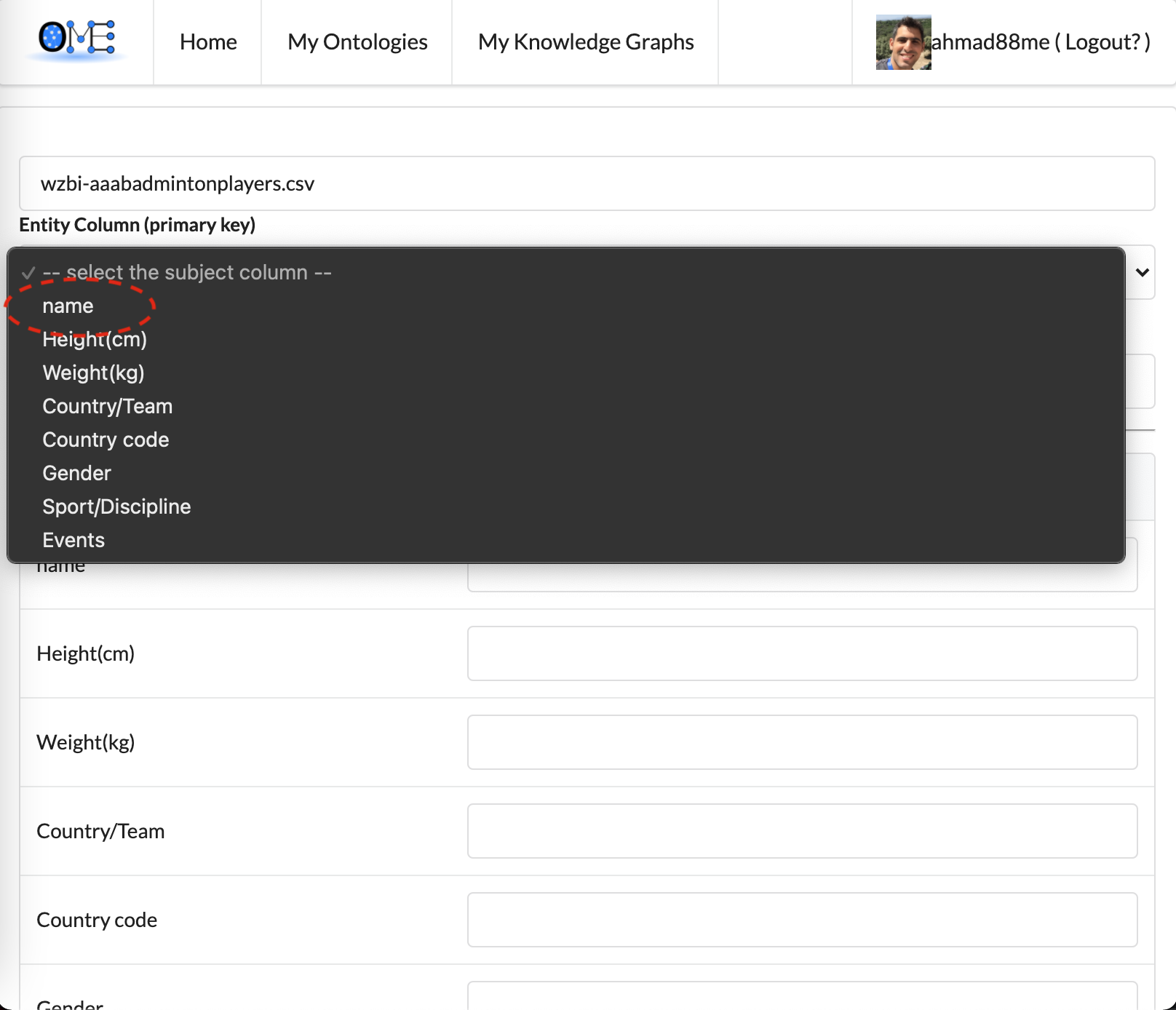
We select the subject column, which contains the labels of the main entities in the input data. Here,
the subject column is name. As we selected the DBpedia knowledge graph for the smart
suggestion,
the class of the subject column and the equivalent properties of the columns will be suggested.
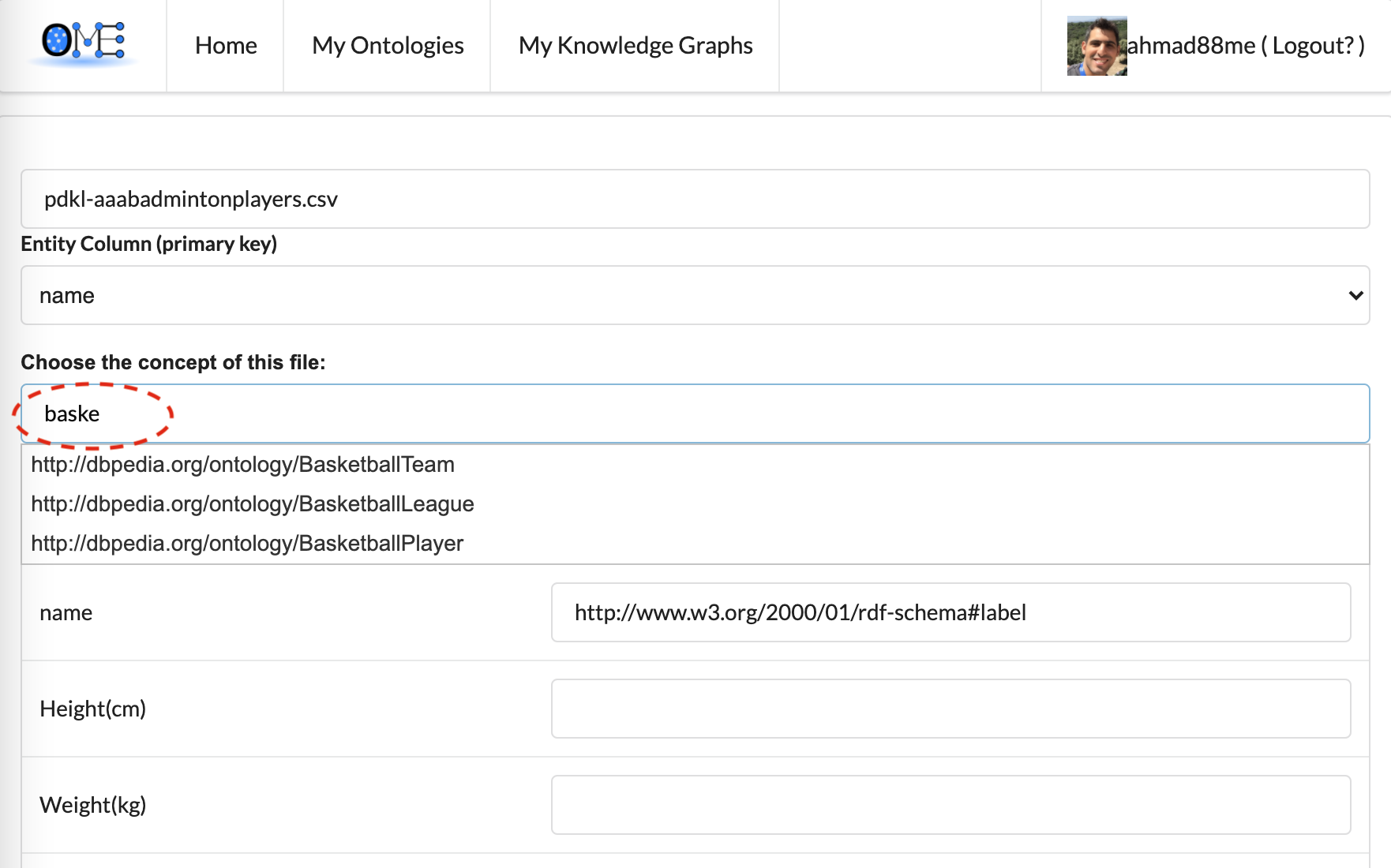
If the suggested class of the subject column is correct, we can leave it as is. If we like to change it,
we can type the correct class and editor will suggest the class.
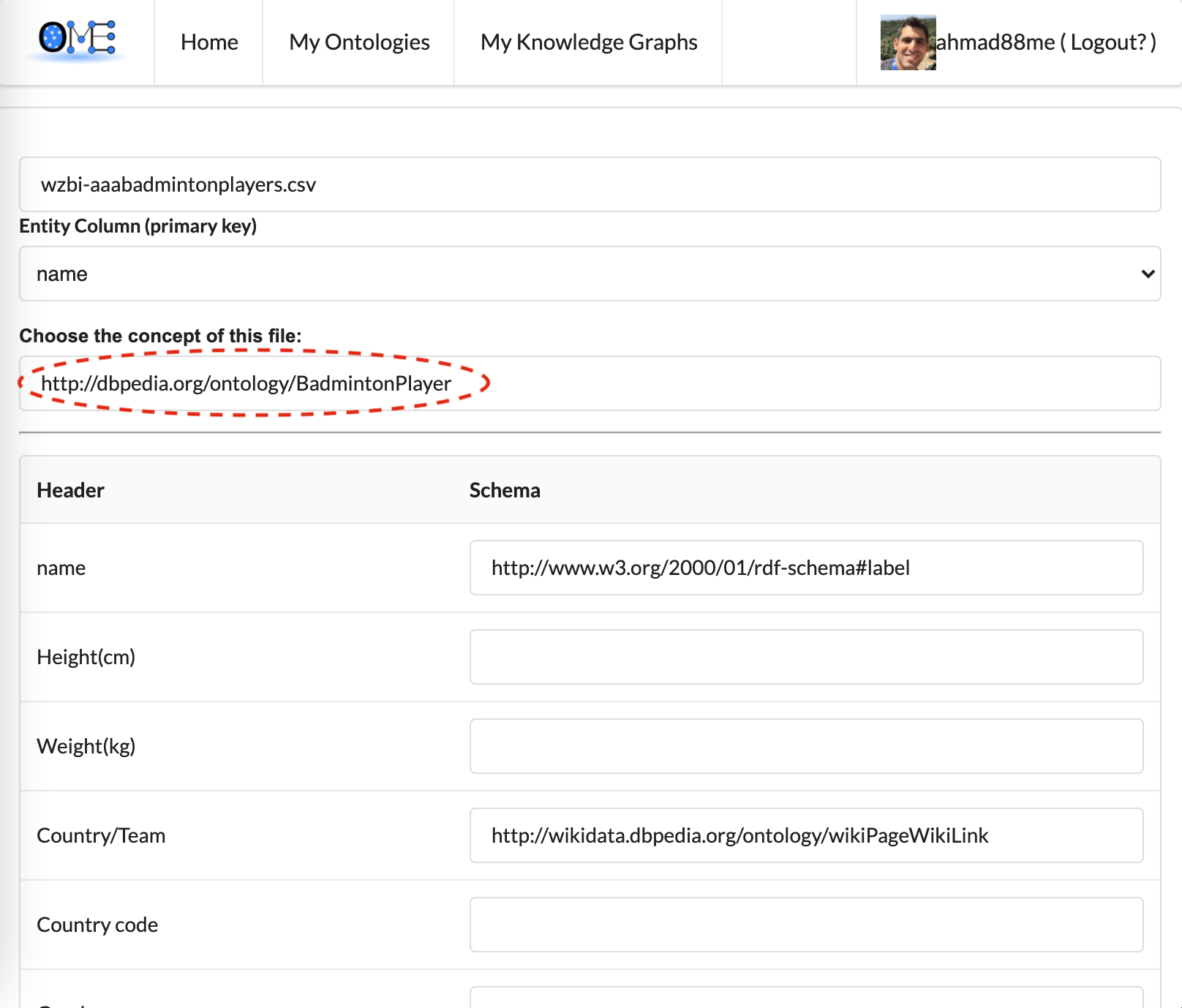
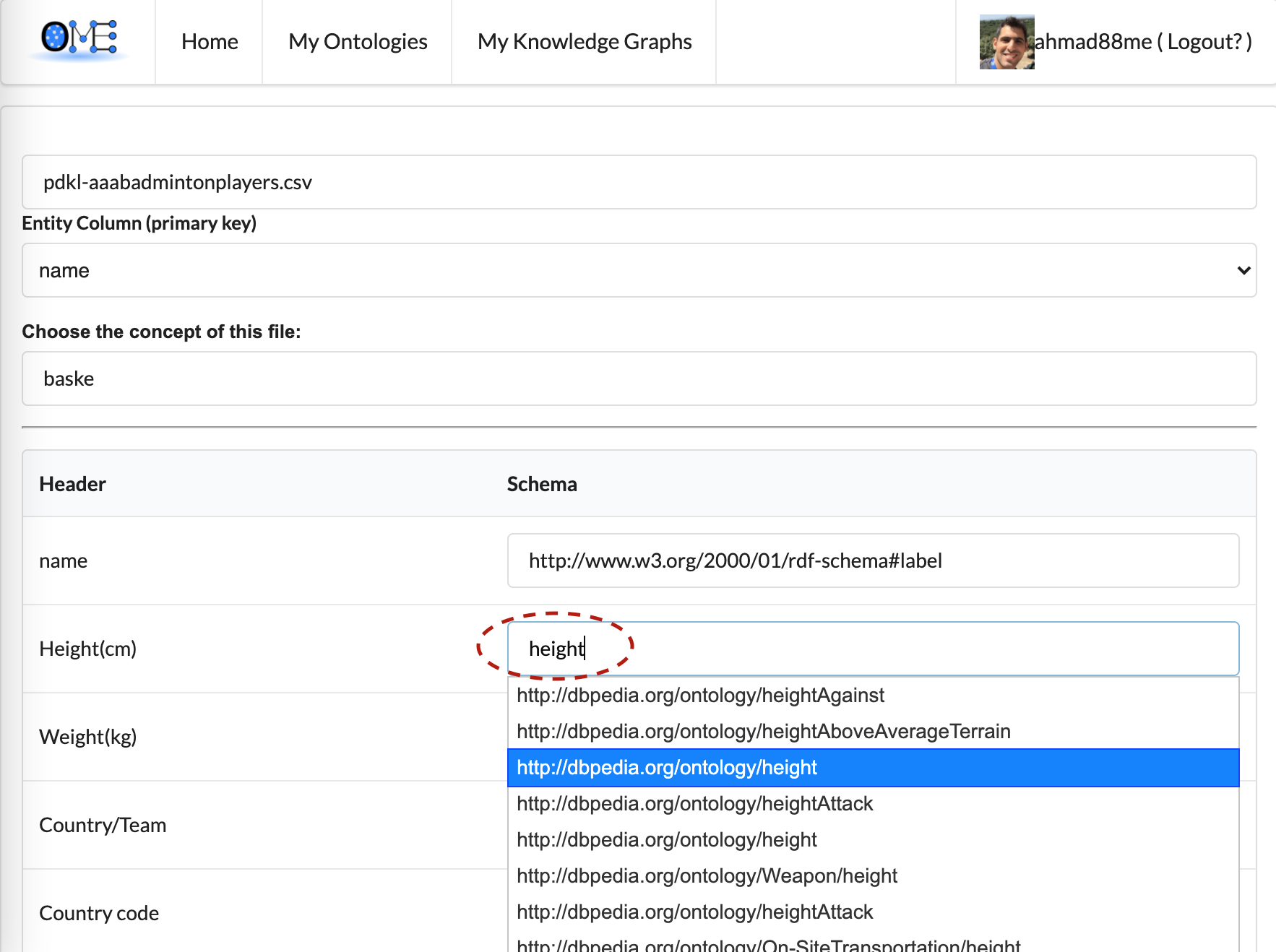
If we selected the smart suggestion options, the system would try to predict the equivalent properties to
the
different columns (which is the case here). In this example, the system didn't predict the height, so we
type the first few letters and the auto-complete function help us select the correct property.
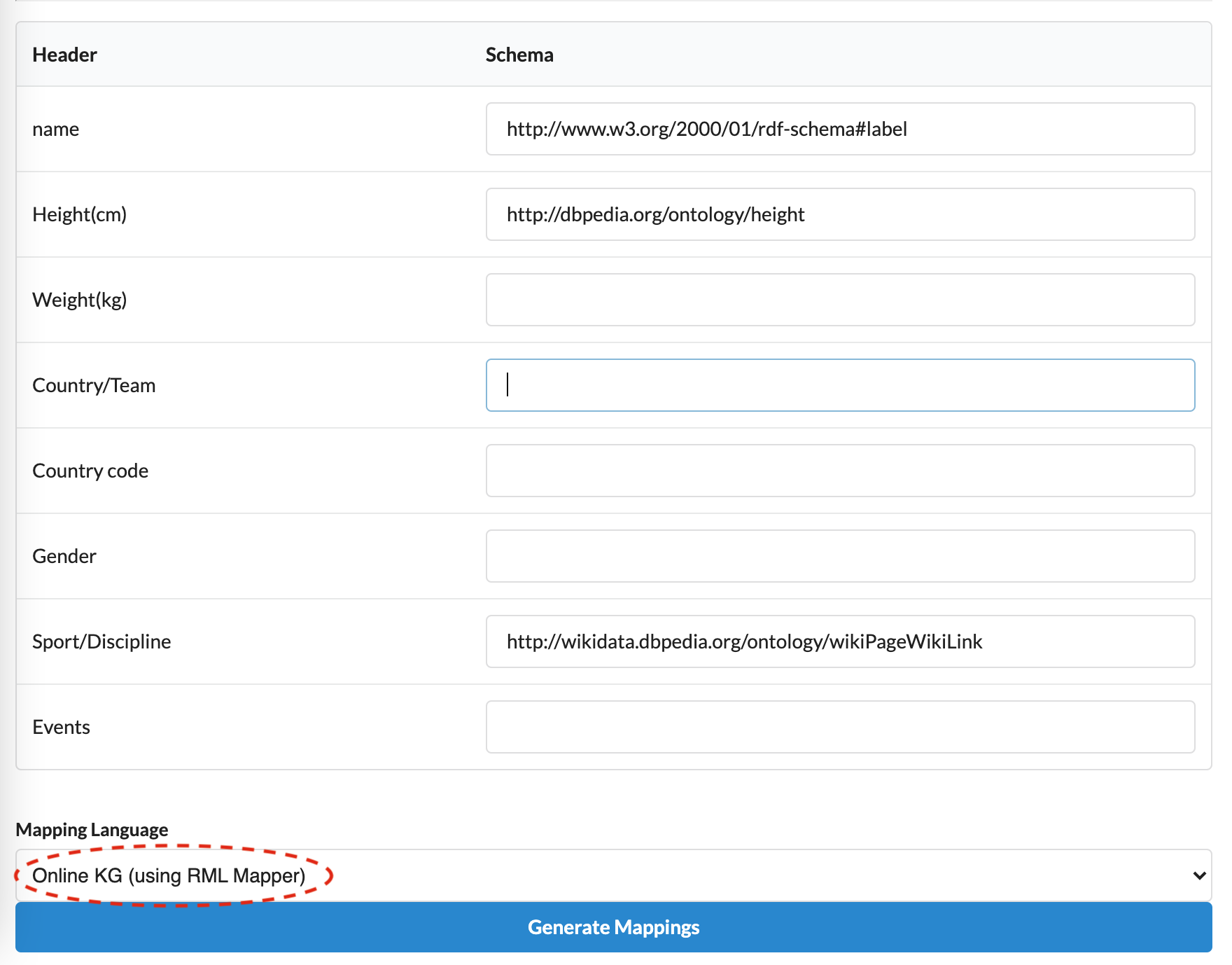
We can choose to download the results as a mapping file in RML or R2RML format. We can also choose to
generate the
RDF of our data with a SPARQL endpoint. To do so, we choose the option Online KG
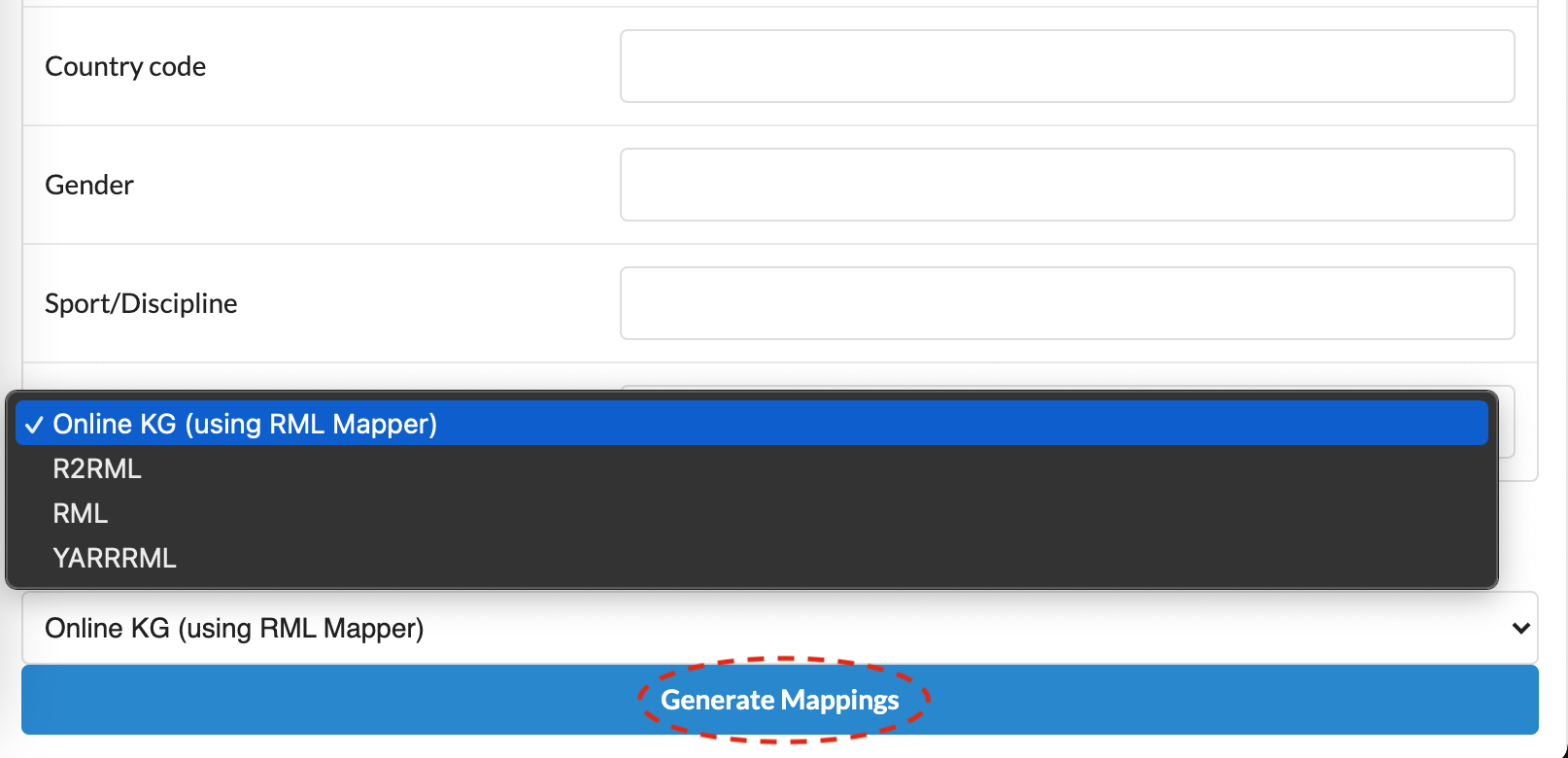
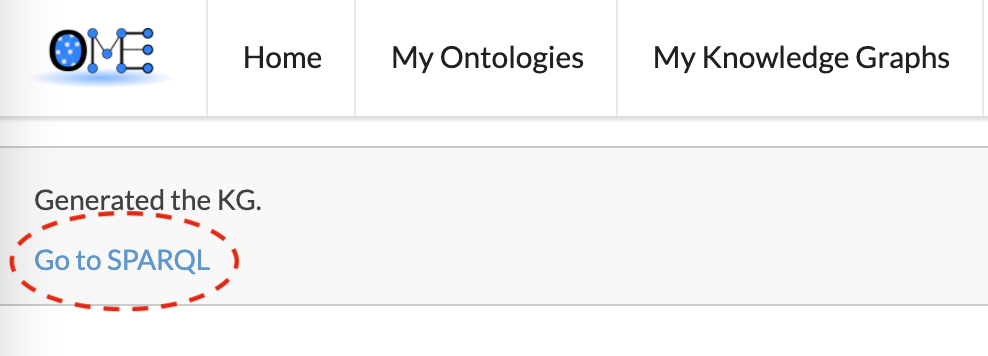
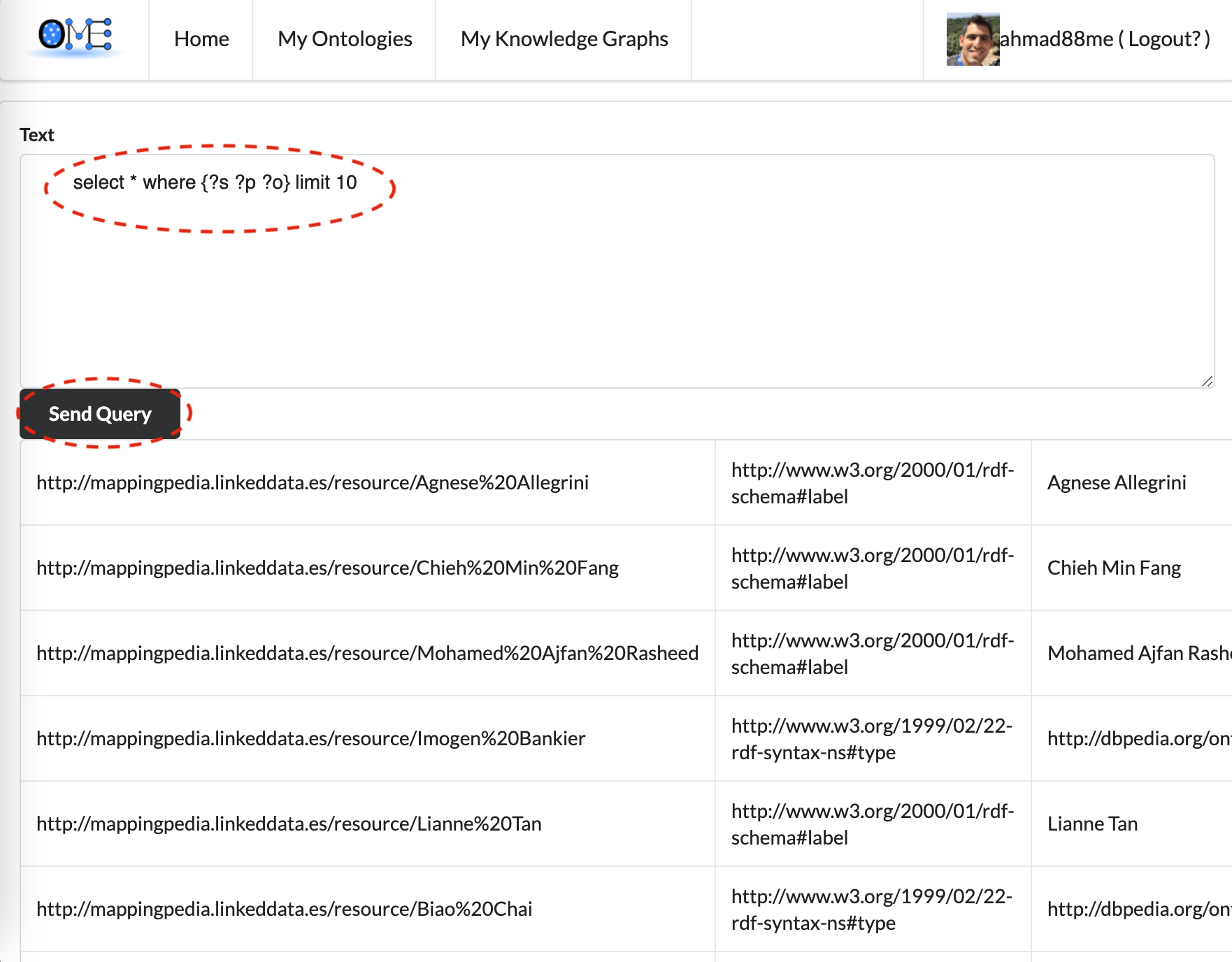
We generate the knowledge graph and allow querying the data using SPARQL.
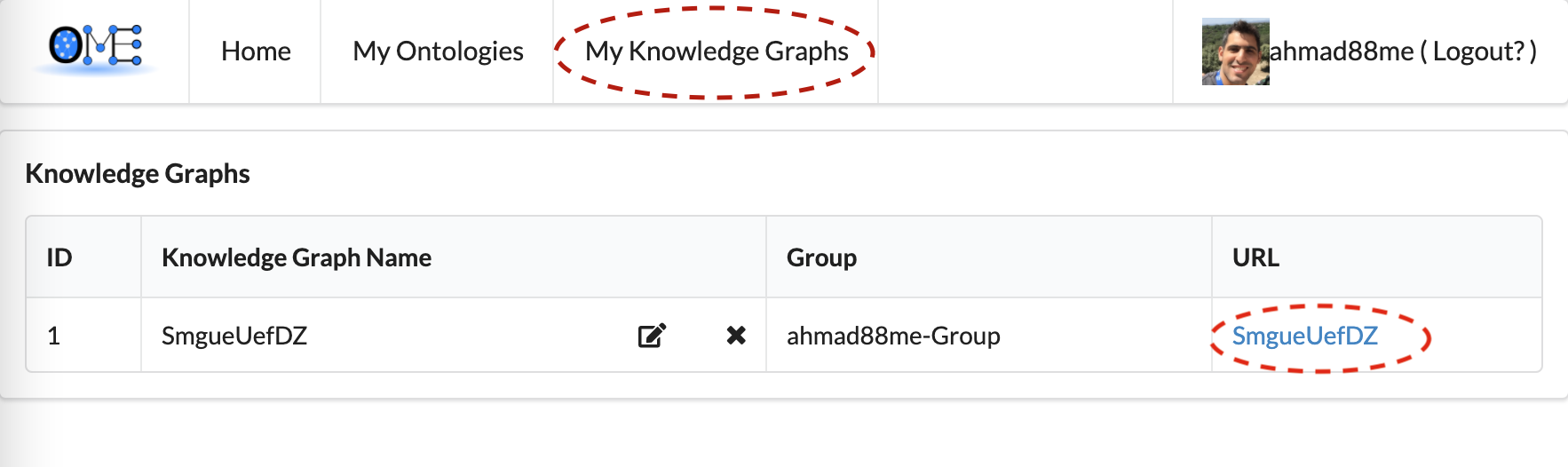
We can go to the page My Knowledge Graph, and access previously generated
Knowledge Graphs.
 Login with GitHub